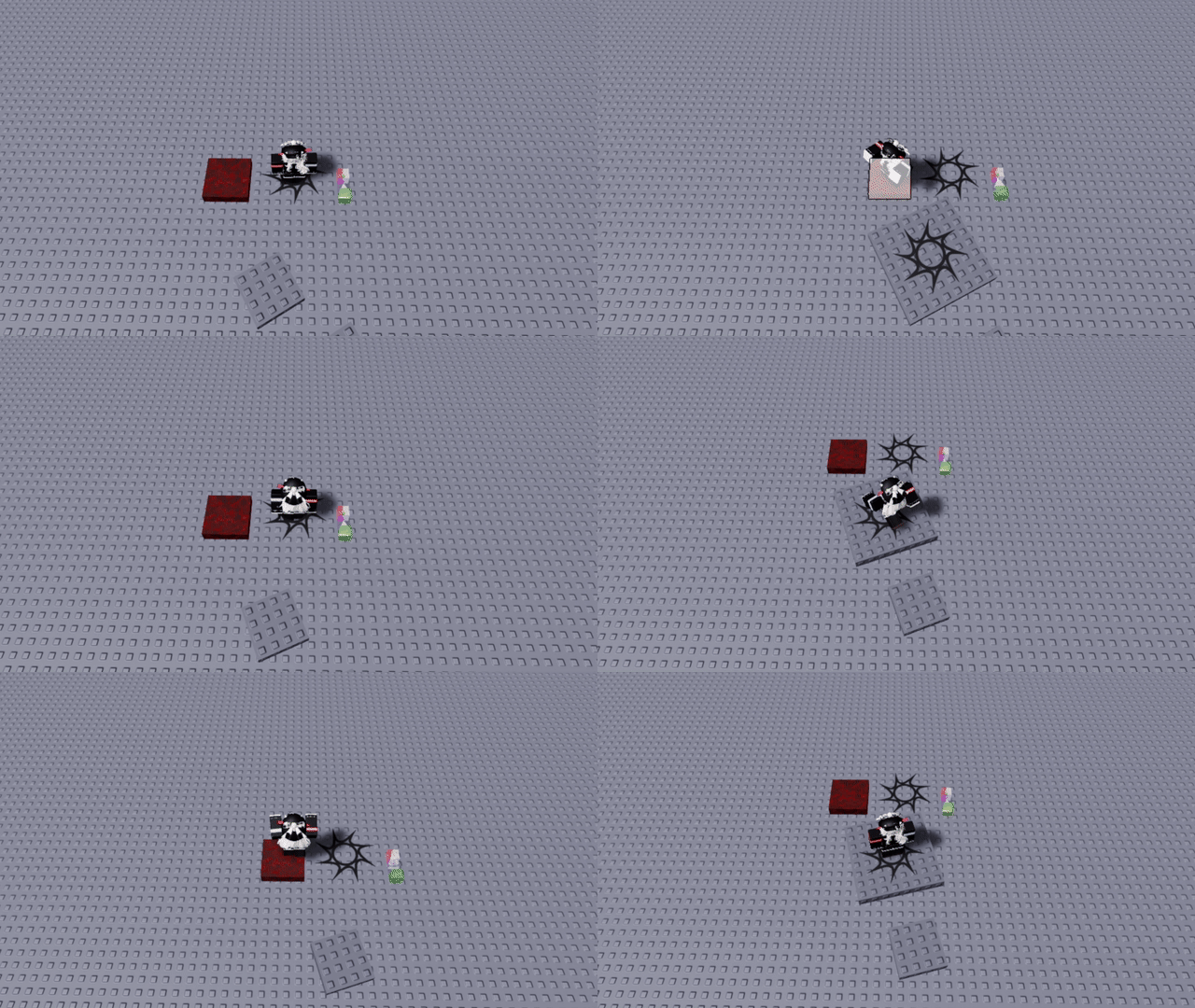
Property Changers
Property Changers are objects that can change the properties of any object.
Use Cases
Property Changers can be used to change properties of objects. They can be used in combination with Sequencers in order to make complex contraptions and sequences.
It is recommended to have some prior scripting/progamming knowledge before using Property Changers. This will make them a lot easier to understand and use.
Using Property Changers
The Property Changer's Properties module can be found inside the PropertyChangerConfiguration object. This module contains all of the data of the Property Changer.
Do not tamper with the lines placed at the top of the script or write non-intended custom code in functions. There are restrictions in place in order to prevent doing things that aren't allowed, and doing this will make your tower ineligible for submission according to the Custom Client Objects rule.
Extra lines of code (such as calculations or external functions) are allowed if they do not directly index any instances/properties without using the provided property changer functions.
The table contains a list of properties to change, as well as an Instance field that is required for the Property Changer to function. For example, the default properties look like this:
local Properties: _C.Format = {
    {
        Instance = Toucher(),
        Tween = TweenInfo.new(0.5, Enum.EasingStyle.Linear, Enum.EasingDirection.Out),
        Color = function(_E)
            return _E.Changer():Property("Color")
        end,
    },
}
This will change the Color of any part that touches the Property Changer to the color of the changer.
The Bullet Velocity Changer (a pre-made PropertyChanger) found in the kit has fields that look like this:
Instance = Toucher():FindChildOfClass("LinearVelocity"),
Tween = TweenInfo.new(0.25, Enum.EasingStyle.Linear, Enum.EasingDirection.Out),
VectorVelocity = function(_E)
    return _E.Changer():Property("CFrame").LookVector * _E.Changer():FindChild("PropertyChangerConfiguration"):Property("Speed")
end,
This will search for the LinearVelocity inside the touching object and set its VectorVelocity to the changer's facing direction multiplied by the Speed attribute in the PropertyChangerConfiguration. More information on these functions can be found below.
- The
Instancefield defines what objects will be affected by the Property Changer. - If present, the
Tweenfield will tween these properties. Note that tweens may be laggy if you are affecting a large amount of objects at once. AllTweenInfofields, includingRepeatCount,ReversesandDelayare supported. - If present, the
Conditionfunction will make the Property Changer not run if the condition is not met. Read the documentation on property checkers for more info.
Every other field defines properties of the object to change. You can either directly define values or use a function to calculate the value or retrieve the value from another object. An advanced example is as follows:
-- this property changer will affect the object that touches it in the following ways:
-- * change the color of the part to the color below
-- * change the transparency of the part between 0-1 depending on the range to the player, between 10-30 studs
-- * delete the part (lol)

local NEW_COLOR = Color3.fromRGB(91, 154, 76)
local NEW_COLOR_A = Color3.fromRGB(91, 255, 76)
local NEW_COLOR_B = Color3.fromRGB(255, 255, 76)

-- using external functions like this are allowed if they simply calculate & return values!
-- this is helpful for reducing copy paste between different properties
-- this function will return the distance between the player and the current instance,
-- mapped to a number between 0 and 1 based on the min and max arguments
function getDistance(_E: _C.Evaluator, min: number, max: number): number
    local distance = _E.Value("Distance", _E.Instance():Property("Position"))
    local fraction = math.clamp(
        math.map(distance, min, max, 0, 1),
        0, 1
    )

    return fraction
end

local Properties: _C.Format = {
    {
        Instance = Toucher(),

        -- these will work!
        Color = NEW_COLOR,
        Color = function(_E)
            return NEW_COLOR
        end,
        Color = function(_E)
            -- conditional statements can be added within functions!
            if getDistance(_E, 0, 10) < 1 then
                return NEW_COLOR_A
            elseif getDistance(_E, 10, 20) < 1 then
                return NEW_COLOR_B
            end
            return NEW_COLOR
        end,

        -- any properties being set to nil must use a function,
        -- otherwise the assignment will be seen as non-existant
        -- also, if the Parent of an instance is set to nil, it will be entirely destroyed
        Parent = nil, -- this won't work
        Parent = function()
            return nil -- this will!
        end,

        -- external functions may be used!
        Transparency = getDistance(_E, 10, 30)
    },
}
Attributes of objects can be changed in the same way as any other property. If a given property does not exist on an object, it will change (or create) the attribute with the given name instead. Along with this, there are specific methods that can be called by specifying them like any other property:
- :AddTag()
- :RemoveTag()
- :PivotTo() (only usable with
Models) - :ScaleTo() (only usable with
Models)
Multiple property changers can be linked to the same module by replacing the Properties module inside of it with an Properties ObjectValue with its Value set to the module it should use. This is useful to avoid duplicated property changers containing the same instructions.
Instance Field
There are multiple ways to retrieve the set of objects to affect: Toucher, Tagged, TagFromSequenceVariable, and Changer.
Toucher will affect the part that touched the Property Changer. An example of this is in the default properties shown earlier.
Tagged will look through all Client Objects and affect any objects that have the given Tag.
Example usage:
-- This will affect any object in the Client Object folder that has the tag "MyCoolPart"
Instance = Tagged("MyCoolPart"),
TagFromSequenceVariable is similar to Tagged, but the given value is treated as a Sequence Variable instead.
Example usage (also see here for more information):
-- If there is a Sequence Variable named "MyCoolVariable" with the value "MyCoolPart", this will affect any object in the Client Object folder that has the tag "MyCoolPart"
Instance = TagFromSequenceVariable("MyCoolVariable"),
Changer will simply affect the Property Changer itself.
Specifiers
More functions can be appended to these to instead affect the object's parent or children. The list of provided methods is as follows:
| Value | Description |
|---|---|
:FindChild("Name") | Returns the first direct child of the current instance with the specified name. |
:FindDescendant("Name") | Returns the first descendant (child, grandchild, etc.) with the specified name. |
:FindChildOfClass("ClassName") | Returns the first direct child of the current instance whose class matches the given class name. |
:FindDescendantOfClass("ClassName") | Returns the first descendant (child, grandchild, etc.) whose class matches the given class name. |
:FindAncestor("Name") | Searches upward through the instance’s parents and returns the first ancestor with the specified name. This can be used to obtain the ClientSidedObjects folder. |
:FindAncestorOfClass("ClassName") | Searches upward through the instance’s parents and returns the first ancestor whose class matches the given class name. |
:Parent() | Returns the parent of the current instance. |
:GetChildren() | Returns all direct children of the current instance. |
:GetDescendants() | Returns all descendants of the current instance recursively (children, grandchildren, etc.). |
An example of this is shown in the Bullet Velocity Changer snippet above, with the function grabbing the LinearVelocity inside the bullet which touched:
Instance = Toucher():FindChildOfClass("LinearVelocity"),
Built-In Functions
The Property Changer has built-in functions that allow you to retrieve values from other objects. These are listed below.
_E.Value()
This function lets you retrieve certain values for usage in the Property Changer. The list of retrievable values is as follows:
| Value | Description | Example Usage |
|---|---|---|
PlayerName | The player's username | _E.Value("PlayerName") |
PlayerDisplayName | The player's display name | _E.Value("PlayerDisplayName") |
UserId | The player's user ID | _E.Value("UserId") |
Distance | The distance between the player's character and the given position | _E.Value("Distance", Vector3.zero) |
CharacterPosition | The position of the player's character | _E.Value("CharacterPosition") |
CharacterCFrame | The CFrame of the player's character | _E.Value("CharacterCFrame") |
PlayerHealth | The player's health | _E.Value("Health") |
CameraCFrame | The camera's CFrame | _E.Value("CameraCFrame") |
HumanoidState | The player's HumanoidStateType | _E.Value("HumanoidState") |
FormatTimer | Formats the given timer value with the string. See: the documentation on formatTimerText | _E.Value("FormatTimer", "{M}:{S}:{MS}", 1, 120) |
SequenceVariable | This function lets you retrieve the Sequence Variable with the given name. | _E.Value("SequenceVariable", "MyAwesomeVariable") |
MoveVector | The player's movement vector | _E.Value("MoveVector") |
IsShiftLocked | Whether the player has shift lock active. An extra true argument can be used to include first-person mode in this check as well. | _E.Value("IsShiftLocked", true) |
IsJumping | Whether the player is currently jumping. | _E.Value("IsJumping") |
ViewportSize | A Vector2 depicting the size of the player's screen | _E.Value("ViewportSize") |
IsKeyDown | Whether the player is holding down the given key | _E.Value("IsKeyDown", Enum.KeyCode.E) |
PreferredInput | The input type the player is using | _E.Value("PreferredInput") |
_E.Changer()
This function lets you retrieve any property from the Property Changer itself. This example will change the Color of any touching Part to the Color of the changer itself:
Color = function(_E)
    return _E.Changer():Property("Color")
end,
_E.Instance()
This function lets you retrieve any property from the object you are affecting. This example will change the Transparency of any affected Part based on how far away you are from it, with a radius of 30 studs:
Transparency = function(_E)
    return _E.Value("Distance", _E.Instance():Property("Position")) / 30
end,
_E.Tagged()
This function lets you retrieve any property from an object with the given Tag. This example will retrieve the Color of an object that has the tag MyCoolPart:
Note that this function only retrieves one object from the tag.
Color = function(_E)
    return _E.Tagged("MyCoolPart"):Property("Color")
end,
_E.SequenceInstance()
This function lets you retrieve any property from an object provided by a Sequencer. These variables are defined as any Attributes added to the Sequencer activator's SequenceVariables configuration.
Along with any user-defined variables, Sequencers also provide two default values:
- TouchingPart - The Part that touched the sequencer's activator
- ActivatingPart - The Activator part that activated the sequencer
This example will retrieve the Color of the sequence instance ActivatingPart:
Color = function(_E)
    return _E.SequenceInstance("ActivatingPart"):Property("Color")
end,
Configuration
| Name | Default Value | Description |
|---|---|---|
Cooldown | 0.5 | Delay between being able to activate the Property Changer again. |
SilenceWarnings | false | When true, the Property Changer will not print out any non-essential warnings into the console (i.e. when there are no instances to affect). Enable if you want to keep the output clean and you know what you're doing |
Property Checkers
Conditions use boolean configuration attributes that are not present by default. These must be manually added to the PropertyChangerConfiguration.
When Condition is used in combination with a Sequencer, failing conditions will have different behavior on the sequencer depending on the attribute.
ConditionalEnableddisables its ability to set any properties in the samePropertiesmodule, so a separateProperty Changermust be used after the checker instance. When this attribute is true and the condition is false in runtime,Sequencercancels the current loop and restarts its remaining loops.
ConditionalEnabled is required for the following modifiers:
ConditionalBreakSequencewill completely cancel the sequencer and any of its remaining loops.ConditionalYieldwill make the sequencer wait until the condition is met before continuing the sequence. The condition waits 1/60th of a second, so conditions such as_E.Value("IsJumping")may be missed if the player jumps off the cycle. This conditional checking cycle is not synced to any framerate, and is instead on its own timer.
Watch out: Turning on ConditionalEnabled without specifying a condition will cause the Property Changer to never activate.
This example will allow the sequencer pass if the player is within 50 studs of it:
local Properties: _C.CheckerFormat = {
    {
        Instance = Changer(),
        Condition = function(_E)
            return _E.Value("Distance", _E.Instance():Property("Position")) < 50
        end,
    },
}
_E.Event()
This function returns a RBXScriptSignal based on hardcoded retrieval. The current list of queryable events from _E.Event() specifically are shown below.
| Value | Description |
|---|---|
JumpRequest | Fires when the player attempts to jump. This is able to trigger if the player is midair and tries to jump. On mobile, JumpRequest cannot fire if the player's JumpPower is set to 0, as the jump button is hidden. |
Property Checkers with ConditionalYield also have the ability to yield a sequence until a RBXScriptSignal (commonly known as an event) is fired. Both a Condition and Event can be used within the same CheckerFormat. For obtaining RBXScriptSignal to pass through the Event function definition, :Event() must be appended to the end of instances to filter for RBXScriptSignal outside of the ones queryable from _E.Event(). One example of such signal is ProximityPrompt.Triggered, shown in the code example below.
local Properties: _C.CheckerFormat = {
    {
        -- Proximity Prompt with "MyProximityPrompt" Tag
        Instance = Tagged("MyProximityPrompt"),
        Event = function(_E)
            return _E.Instance():Event("Triggered")
        end,
    },
}
The following example shows how to detect whenever the player jumps, as JumpRequest does not fire multiple times if the player is holding jump. This uses the Jumping signal, as the StateChanged Event with a _E.Value("HumanoidState") Condition can fail if the condition is not captured in the 1/60th of a second's refresh window.
local Properties: _C.CheckerFormat = {
	{
		Instance = Changer(),
		Event = function(_E)
			return _E.Character():FindChild("Humanoid"):Event("Jumping")
		end,
	},
}
Examples
Below are some examples of things that can be made using Property Changers. Models can be downloaded by clicking their respective header.
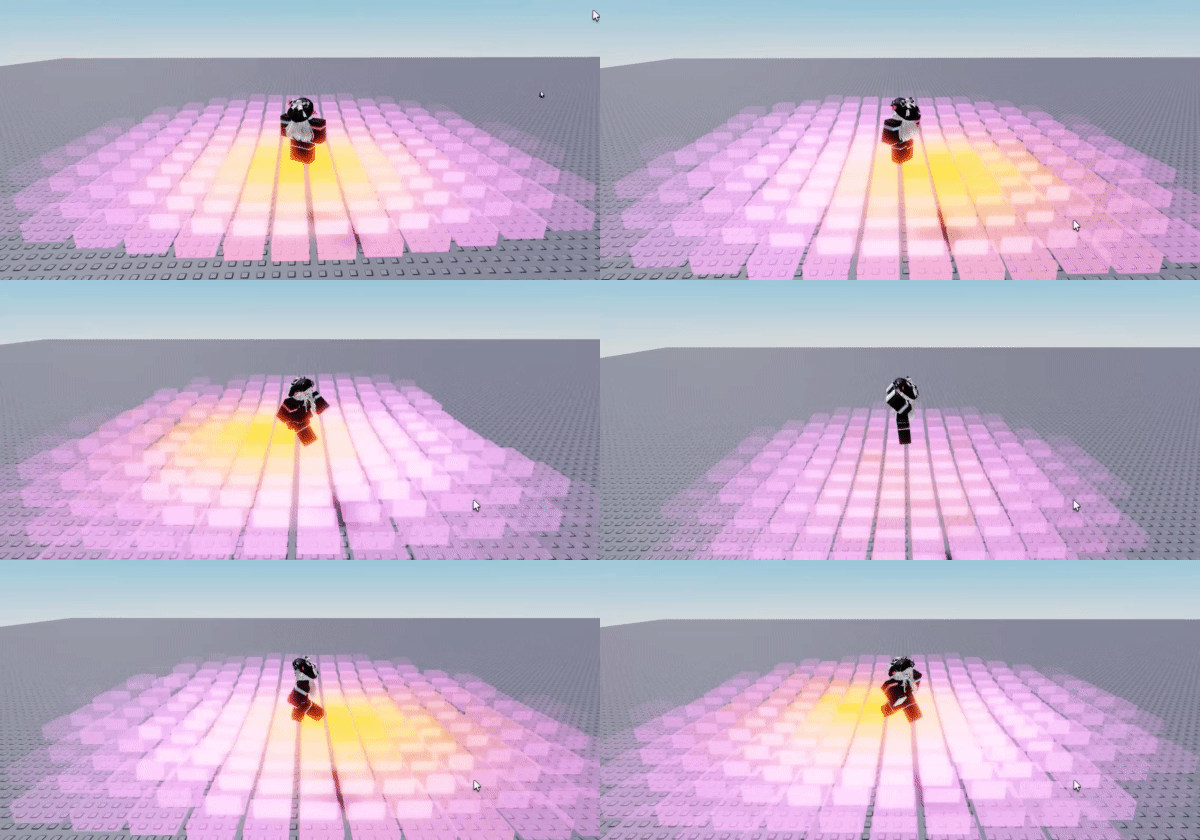
Dancefloor
Grid of parts that change color, transparency & position based on their distance from the player.
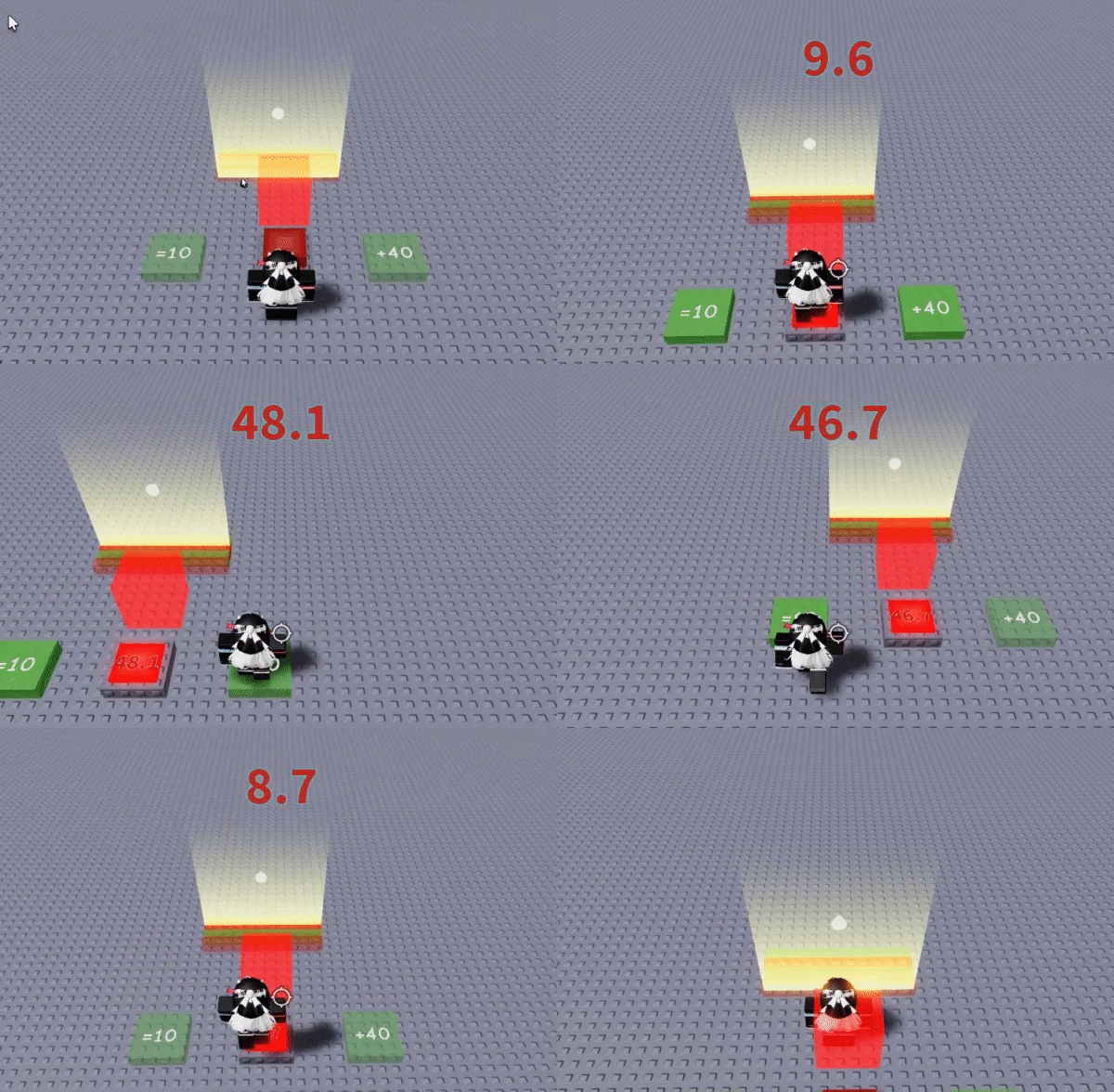
Button Timer Changer
Contains a set of Property Changers that manipulate the timer of a currently activated button. The property changers can only be activated while the button is active, this is controlled by the provided Sequencer.
Made by: FinnZ
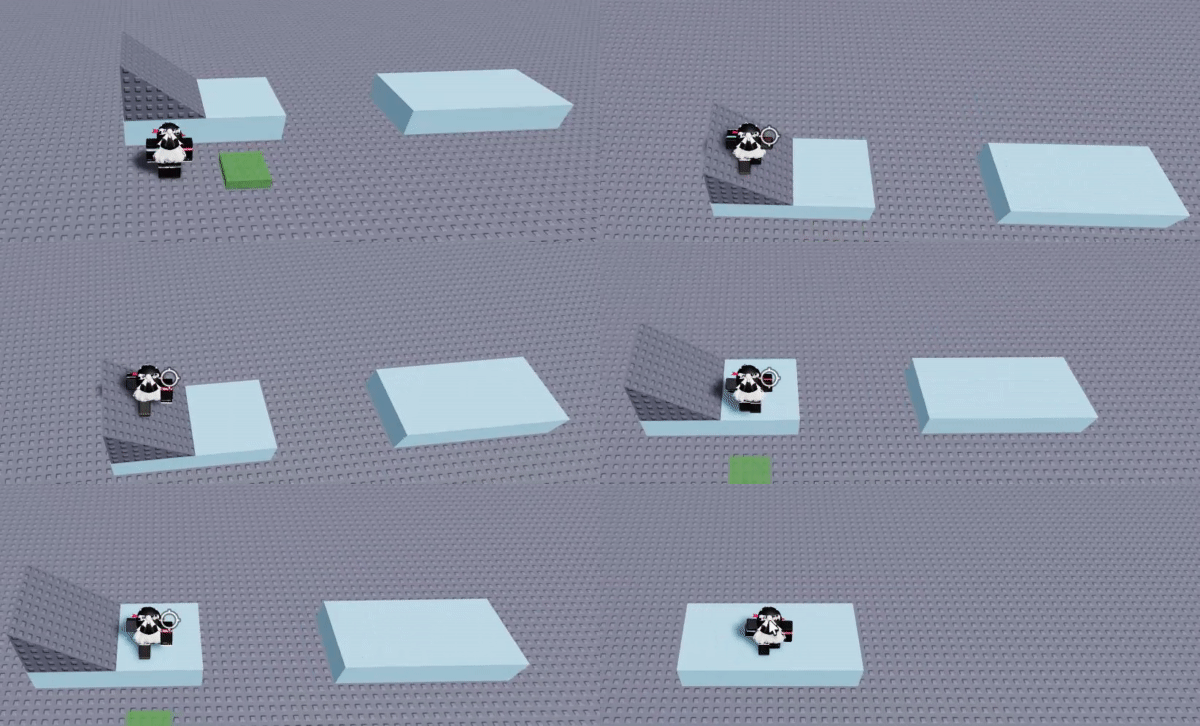
Slope Angle Changer
Simple example that modifies the character's Humanoid.
Checkpoints
Advanced checkpoint system including special parts that send you back to your last checkpoint touched.
Made by: WhoAmIMaybeMe